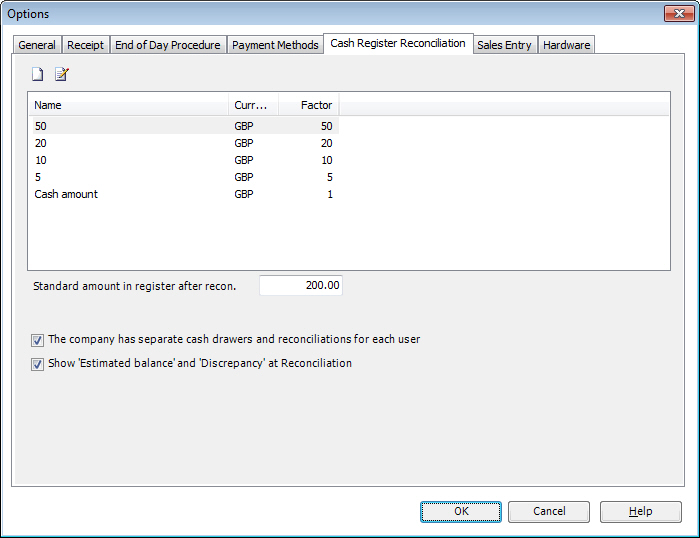
On the Cash Register Reconciliation
tab you will find all settings pertaining to the reconciliation feature
in Mamut Point of Sale. The settings are accessed
by clicking Administration - Options
- Cash Register Reconciliation.
Standard amount in register after recon.: The amount entered here will be suggested as the amount to remain in the cash register after the Cash register reconciliation.
The company has separate cash drawers and reconciliations for each user: This setting ensures that no more than one user can register sales against a cash drawer or under the same cash register reconciliation. If there are registered sales that are not included in a cash register reconciliation, no other user will be able to log on if this setting is activated. Thus, you need to undertake a new cash register reconciliation before a new user can enter any sales.
Show 'Estimated balance' and 'Discrepancy' at Reconciliation: This is optional. Some users wish to see the estimated balance or discrepancy when the cash register is being reconciled, whereas others may prefer that the person undertaking the cash register reconciliation should not see the estimated amount of money to be found in the cash register.
The Denomination Window

 Click New or Edit
in order to create a new or edit an existing denomination. The system
also has a number of pre-defined denominations.
Click New or Edit
in order to create a new or edit an existing denomination. The system
also has a number of pre-defined denominations.
Name: Enter a descriptive name of the denomination.
Amount: A denomination can be something other than a monetary unit with set amounts. For example, if you accept payment with gift vouchers for varying amounts, you can create a denomination called "Gift voucher" and define Denomination value presents: Amount.
Count: Select this alternative if you want to define the value of the denomination as a number.
Factor: This option lets you define if the Count should be multiplied with a factor in order to calculate the total amount due. In the example image above, a denomination for a £20 note has been added. One note is worth 20 pounds. You cannot enter a number lower than 1.
Currency: Here you can enter the company's currency or foreign currency, if one has been entered as Foreign currency under Administration - Options - General.
How to add a denomination:
Go to Administration - Options - Cash register reconciliation.
Click New.
Enter a name, e.g. 20.
Select Amount or Count and possibly a Factor.
Click OK.
 You can now start using the denomination.
 Tip! A number of businesses allow
their employees to register Cash withdrawals
against a receipt. To control these, you can register withdrawals as a
denomination. This way the user will see withdrawals as a denomination
during the cash register reconciliation, and can register the amounts
on the receipts in a separate field for this.
Tip! A number of businesses allow
their employees to register Cash withdrawals
against a receipt. To control these, you can register withdrawals as a
denomination. This way the user will see withdrawals as a denomination
during the cash register reconciliation, and can register the amounts
on the receipts in a separate field for this.
Read more about: