Registering a new PC or logging into an existing account
You can use Mamut Teamwork on several PCs. The program
will recognise the different PCs, so that when you log in on another computer,
you will be asked to enter the information specific to your current computer
in a specially created wizard. This will help you
to keep track of which PC you log in from, so that you can manage the
backups from the different PCs, synchronise the tasks between these and
much more.
The wizard will also pop up the first time you log in after installing
Mamut Teamwork.
The wizard for registering a new PC
The wizard is initiated automatically when you log into a user account
for the first time from a machine you have not previously logged in from.
You use the same account name (e-mail address) and password when logging
in from your own or another PC. The account is verified through the e-mail
address you entered in the installation wizard.
-
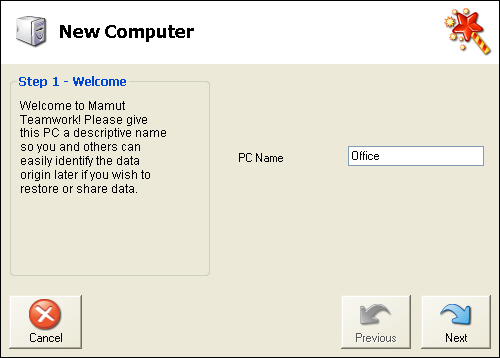
Enter a PC Name
and click on Next. The program
will automatically suggest the PC name to be the same as the one used
in the operating system. You can override this if you wish. The PC name is used to identify which PC
is being referred to when using the service on several machines.
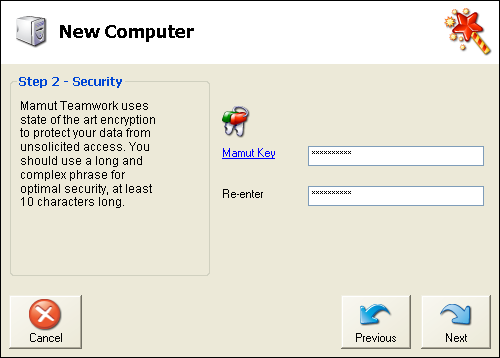
Enter a Mamut Key. Each computer
may have its own key. Read more in the section
Mamut Key.
Confirm that you have saved your Mamut Key
in a secure place by ticking the relevant box.
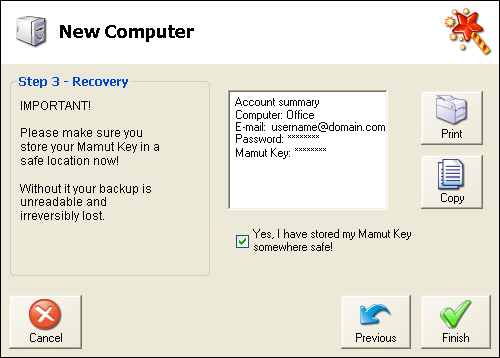
Click on Finish.
 You can now start using the application.
Read more about:
How to download and
install the software